Scheme Variation Report
Reports->Comparative Analysis->Scheme Report->Scheme Variation Report
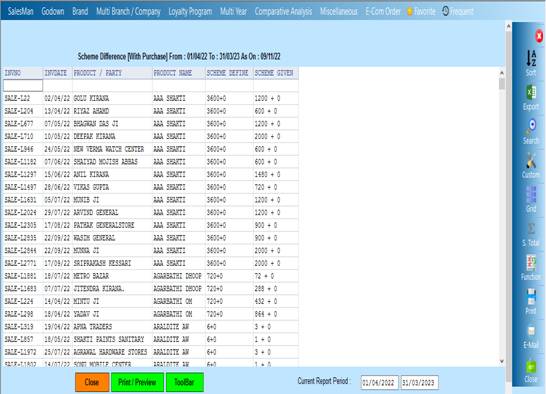
This report will show the record of the party whose sale and transfer out is here in this report if anyone try to see the report then in first cusparty box they have to select scheme master and with purchase according to the company name wise and then the next cusparty box will be open and in this second cusparty box you have to select the sale and transfer out with respect to the company name and the report will be show
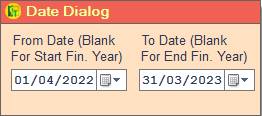
❖ 1.Date Dialog -> Please Select The Date Range And Open The Cusparty
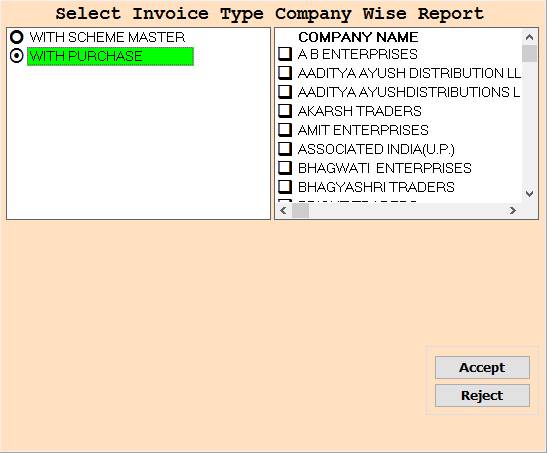
❖ 2.WITH SCHEME MASTER ->Please Select The Scheme Master Or Company Name Wise Report Show
❖ 3. WITH SCHEME MASTER ->Please Select The Scheme Master Or Press On F3 All Select Company Name Wise Report Show
❖ 4. WITH PURCHASE ->Please Select The With Purchase Or Company Name Wise Report Show
❖ 5. WITH PURCHASE ->Please Select The Scheme Master Or Press On F3 All Select Company Name Wise Report Show
❖ 6.ACCEPT-> Click On Accept Button To Open The Second Cusparty Box
❖ 7. REJECT->Click On The Reject Button To Close This Cusparty Box
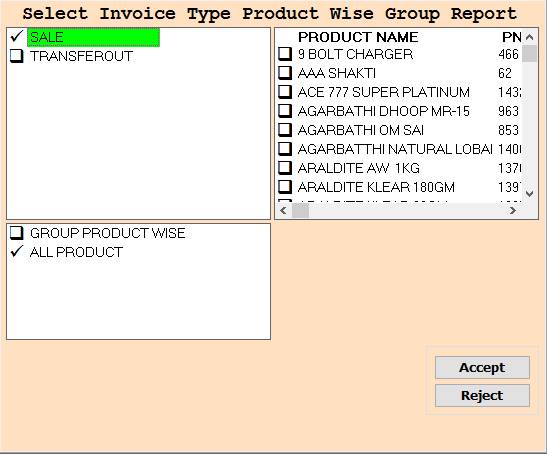
❖ 8.SALE->Please Select The Sale Or Select Product Name Wise Report Show
❖ 9.SALE->Please Select The Sale Or Press On F3 All Select Product Name Wise Report Show
❖ 10.TRANSFEROUT->Please Select The Transfer out Or Select Product Name Wise Report Show
❖ 11.SALE->Please Select The Transfer out Or Press On F3 All Select Product Name Wise Report Show
❖ 11.GROUP PRODUCT WISE->Please Select The Group Product Wise Or Select Product Name Wise Report Show
❖ 12.GROUP PRODUCT WISE->Please Select The Group Product Wise Or Press On F3 All Select Product Name Wise Report Show
❖ 13.ACCEPT-> Click On Accept Button To Open The Report
❖ 14. REJECT->Click On The Reject Button To Close This Cusparty Box
❖ 15. Close-> Clicking on the Close button this Report will be close
❖ 16. Print/Preview->Click On The Print/Preview Buttom Open The Print Section
Created with the Personal Edition of HelpNDoc: Free help authoring environment