Target Ach. Report (Area)
Reports->Territory/Management Reports -> Territory Analysis->Target Report ->Target Achiv Report(Area).
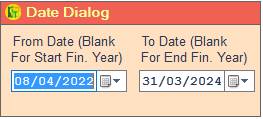
1. Date Dialog -> Please Select The Date Range And Open The Cusparty.
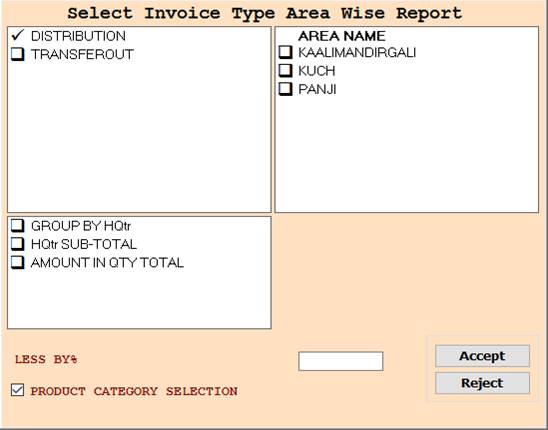
2. In this Window Select Invoice Type/Area Name According To Your Need for Show Report, Select Any One or Multiple
And Press F3 For All Selection, if You not Select Any One then All Selected As Default.
3. Less By % :- Enter the value for show Report Less By % them.
4. Product Category Selection :- Check This Option For Product Category Selection.
5. Accept :- Click On The Accept Button Open This Report.
6. Reject :- Click to cancel the Operation.
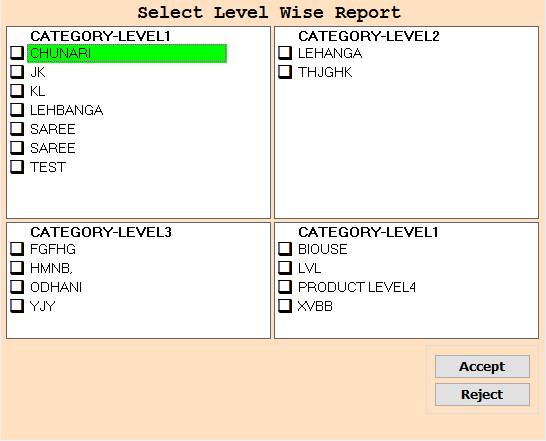
7. When You Checked the Product Category Selection box.
8. In this Window Select Level According To Your Need for Show Report, Select Any One or Multiple
And Press F3 For All Selection, if You not Select Any One then All Selected As Default.
9. Accept :- Click On The Accept Button Open This Report.
10. Reject :- Click to cancel the Operation.
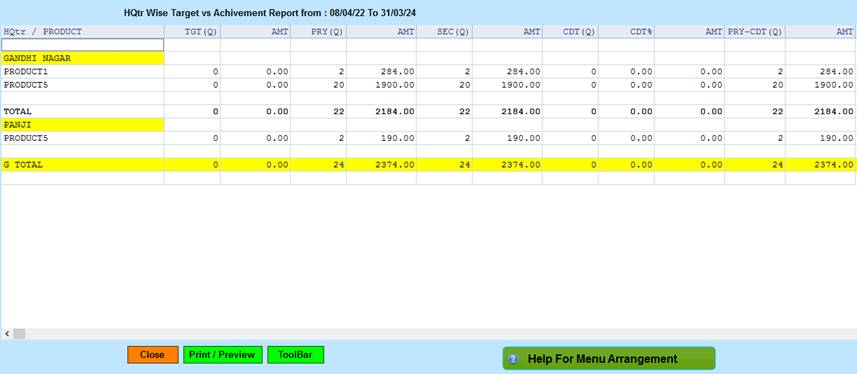
11 . Close :- Click on the Close button this Report will be Closed.
12. Print/Preview :- Click On The Print/Preview Button Open The Print Section.
13. ToolBar :- Click to Open Tool Box.
14. Help For menu Arrangement :- Click for Show Menu Help Pdf.
Created with the Personal Edition of HelpNDoc: Create Professional CHM Help Files with HelpNDoc's Easy-to-Use Tool