Product Wise Load Delivery Tracker
Reports->Salesman->Product Wise Load Delivery Tracker
The Product Wise Load Delivery Tracker Report will show the record of the person whose Distribution,Transferout is
and whoever want to see it according with the Salesman name Select ,it will ipen the second cusparty box then in the second cusparty box if we select the Inv no then it will definitely show the report
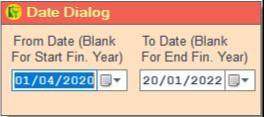
❖ 1.Date Dialog ->Please Select The Date Range And Open The Cusparty
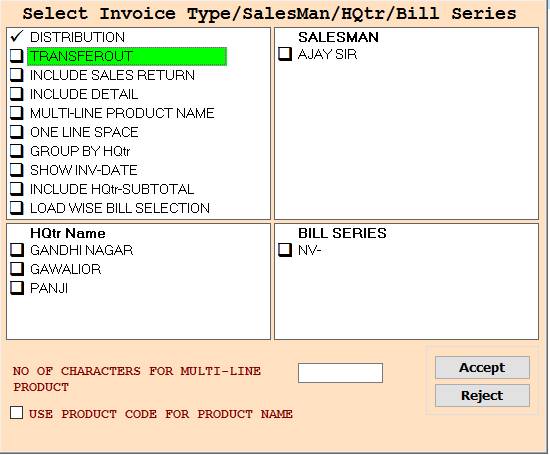
❖ 2.DISTRIBUTION-> Please Select The Distribution Or Anyone SalesMan Wise Report Show
❖ 3.SALESMAN-> Press On F3 All Select SalesMan Wise Report Show
❖ 4.TRANSFEROUT-> Please Select The Transferout Or Anyone SalesMan Wise Report Show
❖ 5.SALESMAN-> Press On F3 All Select SalesMan Wise Report Show
❖ 6.INCLUDE SALES RETURN-> Please Select The Include Sales Return Or Anyone SalesMan Wise Report Show
❖ 7.SALESMAN-> Press On F3 All Select SalesMan Wise Report Show
❖ 8.INCLUDE DETAIL-> Please Select The Include Detail Or Anyone SalesMan Wise Report Show
❖ 9.SALESMAN-> Press On F3 All Select SalesMan Wise Report Show
❖ 10.MULTI-LINE PRODUCT NAME-> Please Select The Multi-Line Product Name Or Anyone SalesMan Wise Report Show
❖ 11.SALESMAN-> Press On F3 All Select SalesMan Wise Report Show
❖ 12.ONE LINE SPACE-> Please Select The One Line Space Or Anyone SalesMan Wise Report Show
❖ 13.SALESMAN-> Press On F3 All Select SalesMan Wise Report Show
❖ 14.GROUP BY HQtr-> Please Select The Group By HQtr Or Anyone SalesMan Wise Report Show
❖ 15.SALESMAN-> Press On F3 All Select SalesMan Wise Report Show
❖ 16.SHOW INV-DATE-> Please Select The Show Inv-Date Or Anyone SalesMan Wise Report Show
❖ 17.SALESMAN-> Press On F3 All Select SalesMan Wise Report Show
❖ 18.INCLUDE HQtr-SUBTOTAL-> Please Select The Include HQtr-Subtotal Or Anyone SalesMan Wise Report Show
❖ 19.SALESMAN-> Press On F3 All Select SalesMan Wise Report Show
❖ 20.LOAD WISE BILL SELECTION-> Please Select The Load Wise Bill Selection Or Anyone SalesMan Wise Report Show
❖ 21.SALESMAN-> Press On F3 All Select SalesMan Wise Report Show
❖ 22. HQtr Name-> Please Select The HQtr Name Or Salesman Wise Report Show
❖ 23.BILL SERIES-> Please Select Bill Series Or Salesman Wise Report Show
❖ 24. Accept-> Click On The Accept Buttom Open This Second Cusparty Box
❖ 25. Reject-> Click On The Reject Buttom Close This Cusparty Box
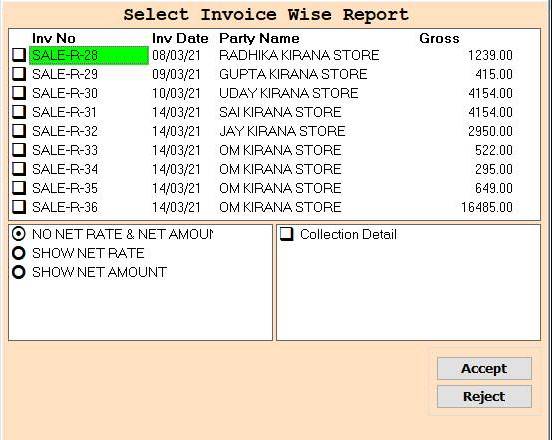
❖ 26.Inv No -> Please Select The Inv No Or Press F3 All Select Inv no Wise Report Show
❖ 27.Accept -> Click On Accept Button Open This Report
❖ 28. Reject-> Click On The Reject Buttom Close This Cusparty Box
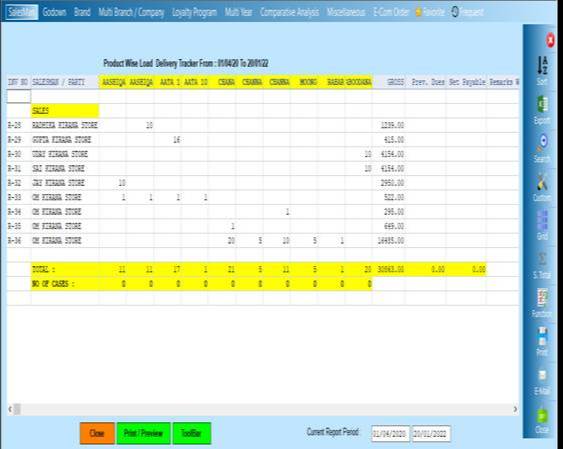
❖ 29. Close-> Clicking on the Close button this Report will be close
❖ 30. Print/Preview-> Click On The Print/Preview Buttom Open The Print Section
Created with the Personal Edition of HelpNDoc: Make Documentation a Breeze with a Help Authoring Tool